> ## Documentation Index
> Fetch the complete documentation index at: https://docs.mailblock.de/llms.txt
> Use this file to discover all available pages before exploring further.
# Prerequisites
> Before you begin using the Mailblock SDK, you'll need to set up your account and obtain an API key.
## System Requirements
* **A package manager of your choice**
## Setting Up Your Mailblock Account
### Step 1: Create Your Account
Sign up for a Mailblock account to get started with our email service:
👉 [**Sign Up for Mailblock**](https://app.mailblock.de/auth/sign-up)
### Step 2: Configure Your Email Server
To send emails, you need an Email Server. Mailblock offers two convenient options:
#### Option A: Use Your Email Server - [More!](/how-to/custom-domain)
* **Add your own domain** and point it to your mail server
* **Configure DNS records** (SPF, DKIM, DMARC) for authentication
* **Benefits**: Use your branded domain, full control
* **Setup time**: 15–30 minutes + DNS propagation
#### Option B: Use a Mailblock Server ⭐ Coming Soon!!
* **Get a pre-configured Mailblock server** with a warmed-up sending domain
* **Ready to use immediately** with high deliverability rates
* **No DNS setup required** — Mailblock handles everything
* **Benefits**: Instant setup, no technical hassle
* **Setup time**: 2–3 minutes
📚 **Need detailed setup instructions?**
Check our comprehensive guide: [Custom Domain Configuration](/how-to/custom-domain)
### Step 3: Generate Your API Key
Once your domain is configured and verified:
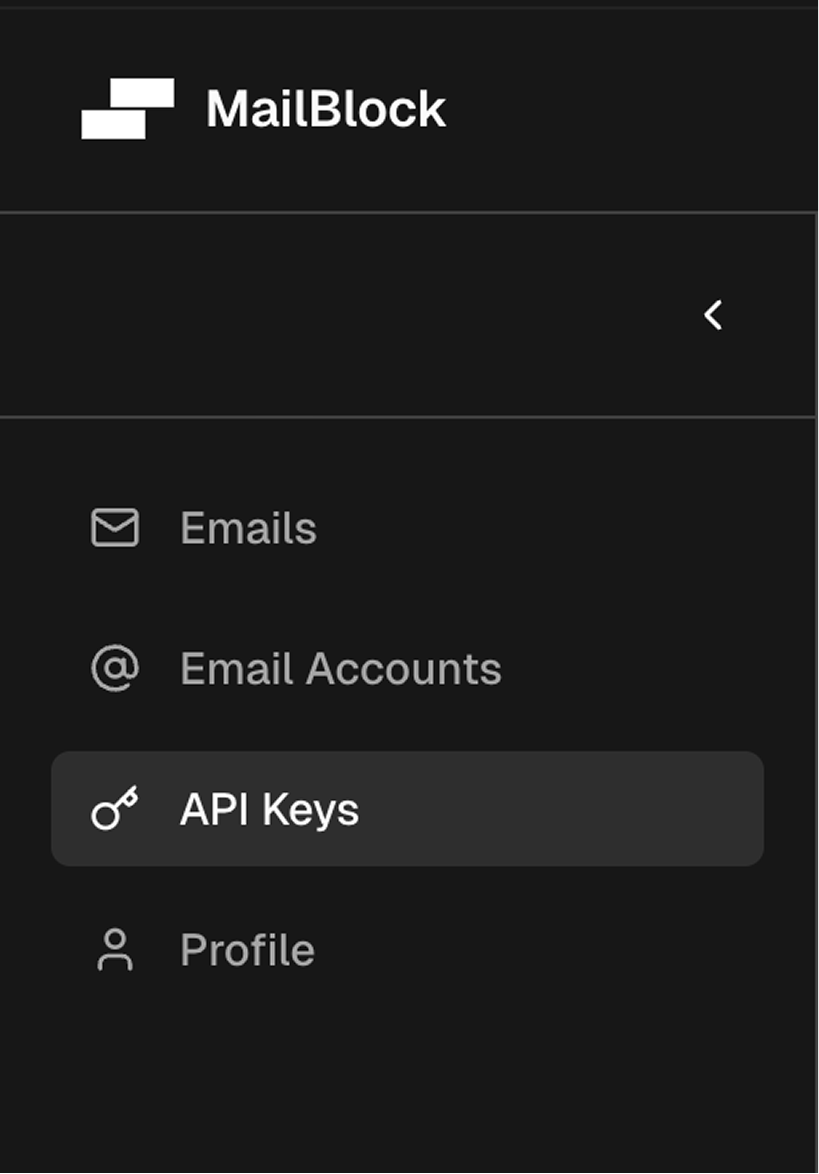
#### 1. Navigate to API Keys
In your Mailblock dashboard, go to the API Keys section:
 #### 2. Create Your API Key
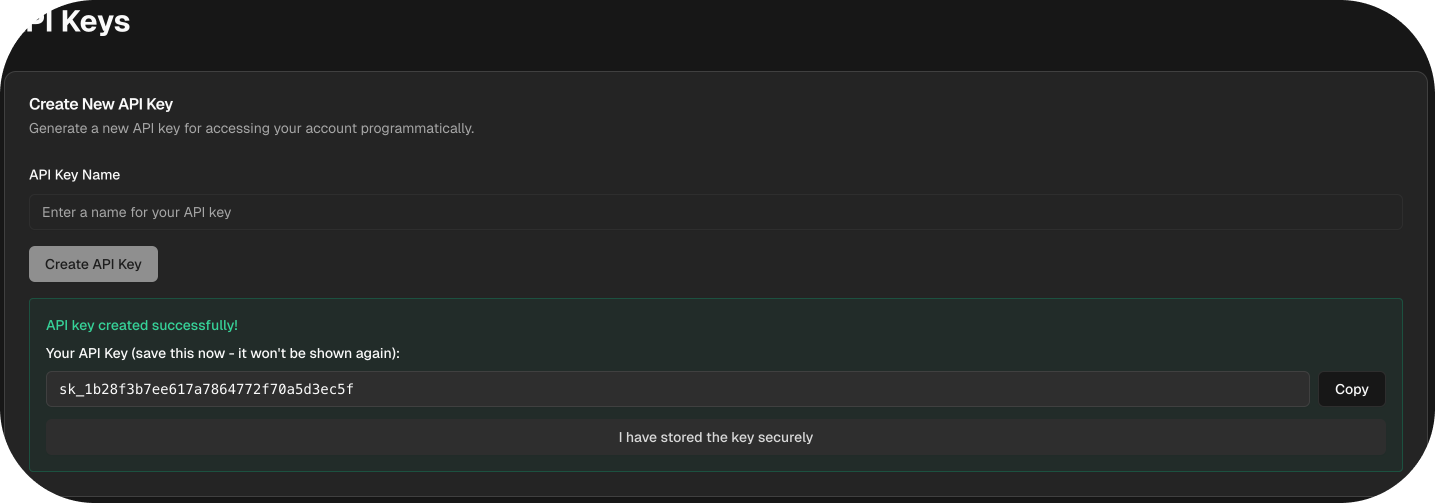
Click "Create New API Key" and give it a descriptive name (e.g., "Production API", "Development Key"):
#### 2. Create Your API Key
Click "Create New API Key" and give it a descriptive name (e.g., "Production API", "Development Key"):
 #### 3. Store Your API Key Securely
⚠️ **Important Security Notes:**
* **Copy your API key immediately** - it won't be shown again
* **Store it in a secure location** (password manager, environment variables)
* **Never commit API keys to version control** (git repositories)
* **Use environment variables** for production applications
* **Regenerate keys** if you suspect they've been compromised
### Step 4: Verify Your Setup
Before proceeding with the SDK, it's important to verify that everything is configured correctly:
#### Use the Verify Domain Button
Click the **"Verify Domain"** button in your dashboard to check if all settings are properly configured:
#### 3. Store Your API Key Securely
⚠️ **Important Security Notes:**
* **Copy your API key immediately** - it won't be shown again
* **Store it in a secure location** (password manager, environment variables)
* **Never commit API keys to version control** (git repositories)
* **Use environment variables** for production applications
* **Regenerate keys** if you suspect they've been compromised
### Step 4: Verify Your Setup
Before proceeding with the SDK, it's important to verify that everything is configured correctly:
#### Use the Verify Domain Button
Click the **"Verify Domain"** button in your dashboard to check if all settings are properly configured:
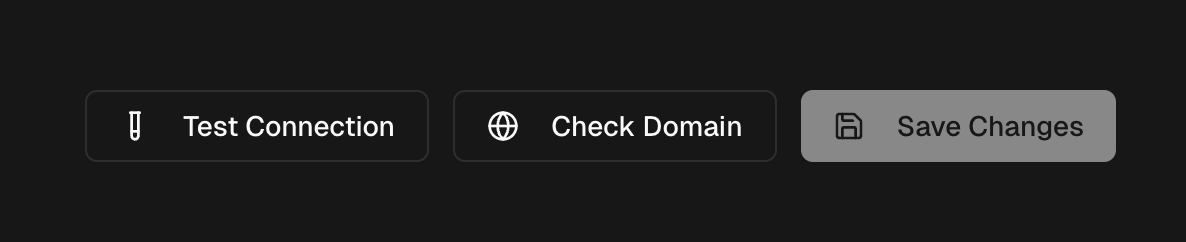 The verification process will check:
✅ **Domain Status**: Should show "Verified" in your dashboard\
✅ **DNS Records**: All authentication records should be "Active"\
✅ **DKIM Configuration**: Proper email signing setup\
✅ **SPF Record**: Sender authentication configured\
✅ **DMARC Policy**: Email security policy in place\
✅ **API Key**: Successfully created and stored securely\
✅ **Sending Limits**: Check your current sending quota
## Environment Setup Best Practices
### For Development
Create a `.env` file in your project root:
```bash theme={null}
# .env file
MAILBLOCK_API_KEY=your-api-key-here
MAILBLOCK_FROM_EMAIL=noreply@yourdomain.com
```
### For Production
Set environment variables on your hosting platform:
```bash theme={null}
# Example for various platforms
# Heroku, Vercel, Netlify, Railway, etc.
MAILBLOCK_API_KEY=your-production-api-key
MAILBLOCK_FROM_EMAIL=noreply@yourdomain.com
```
## Troubleshooting Common Issues
### "Domain not verified" Error
* **Check DNS records** - ensure all required records are added
* **Wait for propagation** - DNS changes can take up to 24 hours
* **Contact support** if verification fails after 24 hours
### "Invalid API key" Error
* **Double-check the key** - ensure no extra spaces or characters
* **Verify key is active** - check dashboard for key status
* **Regenerate if needed** - create a new key if the old one doesn't work
### "Sending quota exceeded" Error
* **Check your limits** in the dashboard
* **Upgrade your plan** if you need higher limits
* **Wait for quota reset** (usually monthly)
## Next Steps
Once you have completed the prerequisites:
1. 📦 [**Install the SDK**](quickstart)
2. 🚀 [**Send your first email**](quickstart)
3. 📚 [**Check out Our Guides**](/how-to/introduction)
The verification process will check:
✅ **Domain Status**: Should show "Verified" in your dashboard\
✅ **DNS Records**: All authentication records should be "Active"\
✅ **DKIM Configuration**: Proper email signing setup\
✅ **SPF Record**: Sender authentication configured\
✅ **DMARC Policy**: Email security policy in place\
✅ **API Key**: Successfully created and stored securely\
✅ **Sending Limits**: Check your current sending quota
## Environment Setup Best Practices
### For Development
Create a `.env` file in your project root:
```bash theme={null}
# .env file
MAILBLOCK_API_KEY=your-api-key-here
MAILBLOCK_FROM_EMAIL=noreply@yourdomain.com
```
### For Production
Set environment variables on your hosting platform:
```bash theme={null}
# Example for various platforms
# Heroku, Vercel, Netlify, Railway, etc.
MAILBLOCK_API_KEY=your-production-api-key
MAILBLOCK_FROM_EMAIL=noreply@yourdomain.com
```
## Troubleshooting Common Issues
### "Domain not verified" Error
* **Check DNS records** - ensure all required records are added
* **Wait for propagation** - DNS changes can take up to 24 hours
* **Contact support** if verification fails after 24 hours
### "Invalid API key" Error
* **Double-check the key** - ensure no extra spaces or characters
* **Verify key is active** - check dashboard for key status
* **Regenerate if needed** - create a new key if the old one doesn't work
### "Sending quota exceeded" Error
* **Check your limits** in the dashboard
* **Upgrade your plan** if you need higher limits
* **Wait for quota reset** (usually monthly)
## Next Steps
Once you have completed the prerequisites:
1. 📦 [**Install the SDK**](quickstart)
2. 🚀 [**Send your first email**](quickstart)
3. 📚 [**Check out Our Guides**](/how-to/introduction)